
Storyline 3: Ensuring your learner watches an entire video before letting them continue
Having an explainer video in your project is great. It makes the learning experience much more engaging. But it’s not great if a learner can skip it.
Building on my previous posting, having forced interactions, like watching a video, is great. Having forced interactions ensures your learners are visiting all the content before going forward with their training.
Before following these steps, have your video object in your project. As you go through the steps, notice similarities and patterns from my previous posting. This will help build your skills using storyline for future projects.
Level of difficulty: Intermediate
Follow the detailed steps. Click the + to expand.

Creating a True/False variable
1. Refer to the Triggers panel and click the Manage project variables button to create a new variable – A variables window will appear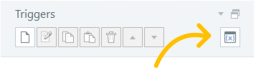
2. Click the “+” button to create a new variable – A variable pop-up window will appear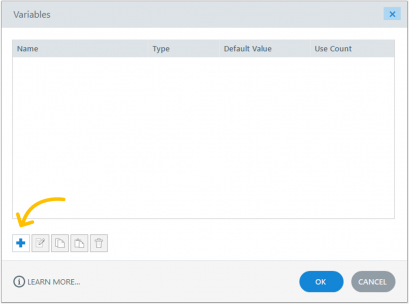
3. Input the following:
• Name: (for example, SlideMovieComplete)
• Type: True/False
• Value: False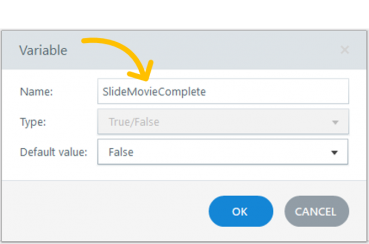
4. Click the OK button
Adding a trigger to the slide when the video finishes playing
1. Refer to the Triggers panel
2. Click Create a new Trigger button – The trigger Wizard window will appear
3. Input/select the following:
• Action: Adjust Variable
• Variable: SlideMovieComplete
• Operator: = Assignment
• Value: Value; True
• When: Media completes
• Object: {select the name of your movie}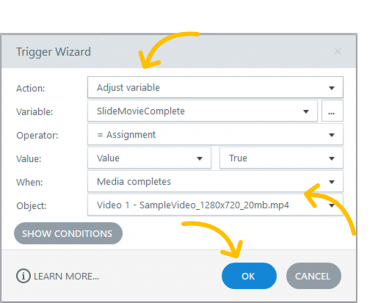
4. Click the OK button
Adding a condition to the next button so it will ONLY work when the video finishes playing
1. Refer to the Triggers panel
2. Click Create a new Trigger button – the Trigger Wizard window will appear
3. Input/select the following in the Trigger Wizard:
• Action: Jump to slide
• Slide: next slide
• When: User clicks
• Object: Next Button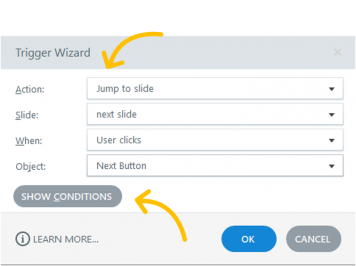
4. On Condition, click the “+” button (Add a “New” or “Or” condition) – the Add Trigger Condition pop-up window will appear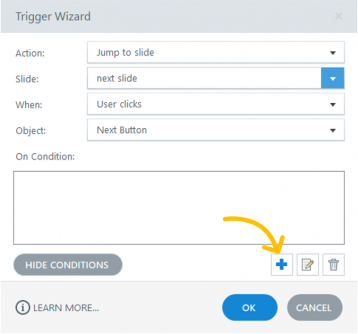
5. Input/select the following:
• List: Variable
• If: SlideComplete
• Operator: == Equal to
• Type: Value
• Value: True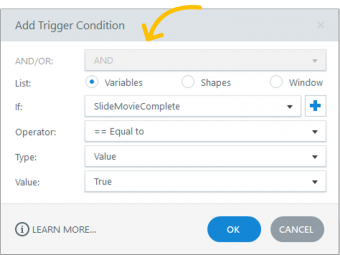
6. Click the OK button to close the Add Trigger Condition pop-up window
7. Click the OK button to close the Trigger Wizard window
8. Save your project
9. Publish your project to AICC or to SCORM
Did you find this useful? We need your support to empower others like you through learning.